🖥️ Network Rendering
Dataflow supports local network rendering using Adobe After Effects' built-in aerender nodes pinging a watchfolder. Only one Machine needs to have Dataflow installed, which will act as the machine that sends the render jobs to the watchfolder.
Setting up your Render Nodes
Tip
Activate logging in Help > Enable Logging on all nodes to get a watch_folder.htm file in the hotfolder which displays render progress across machines.
- Make sure that all machines involved in the network rendering setup have access to the same shared network storage where the After Effects project files and assets are located.
- Make sure that all render machines have access to all other project dependencies, including fonts, plugins, encoders, etc.
- Create an empty After Effects Project and save it as Watch This Folder.aep in the watchfolder location of your choice.
- Open this Project File on all render machines.
This will start After Effects on the render machines in watchfolder mode for that specific folder, waiting for incoming render jobs to start processing.
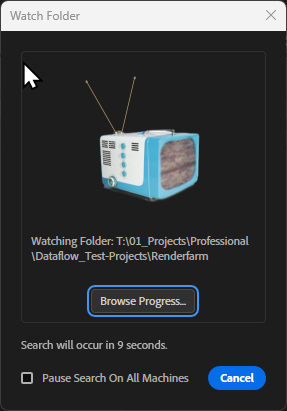
Note
Alternatively, on each render node, start After Effects and navigate to File > Watch Folder... and select the watchfolder location of your choice.
Configuring Dataflow for Network Rendering
On your machine that is dedicated to sending render jobs to the watchfolder:
- Open Dataflow and setup your Batch Rendering or Agent Mode workflow as usual.
- Navigate to ⚙️Settings at the bottom right of the Dataflow Panel.
- Under Network Rendering check the "Save to watchfolder instead of rendering directly" option.
- Set the Watchfolder location to the same location as the watchfolder used by your render nodes.
- Press Save to close the Settings Panel.

Note
All preferences in the ⚙️Settings Panel are applied per User Preset. By default Network Rendering is Disabled.
When Batch Rendering or using Agent Mode, Dataflow will now send all render jobs to the specified watchfolder, as an .aep with the corresponding job data, instead of rendering them directly on your machine.
Next to the Rendering Buttons you will see the Network Rendering Indicator:

Info
With Dataflow, render jobs can only be processed with one machine at a time, also with image sequences.
If multiple render nodes are connected to the same watchfolder, each job will be picked up by only one machine.
For more information on setting up a network rendering environment in After Effects, refer to the official Adobe documentation: Set up a network rendering environment.